Who Gets the Text? Sorting WhatsApp, Signal and iMessage Across Two UK SIMs
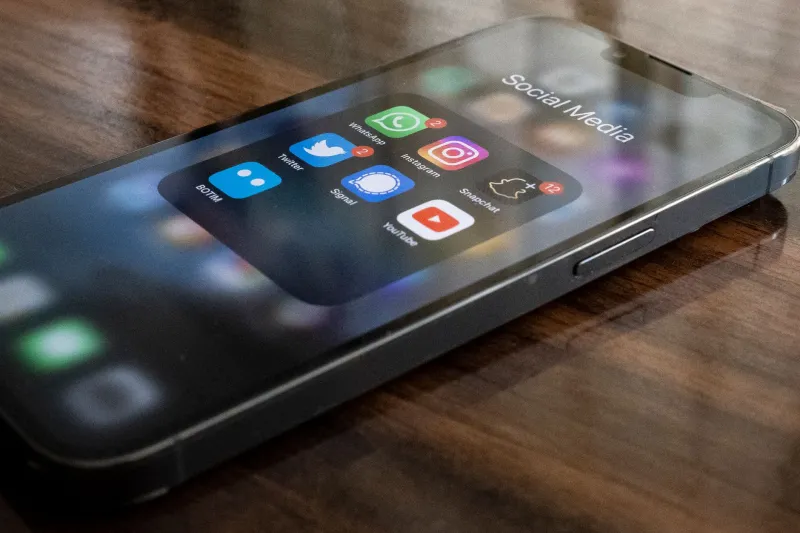
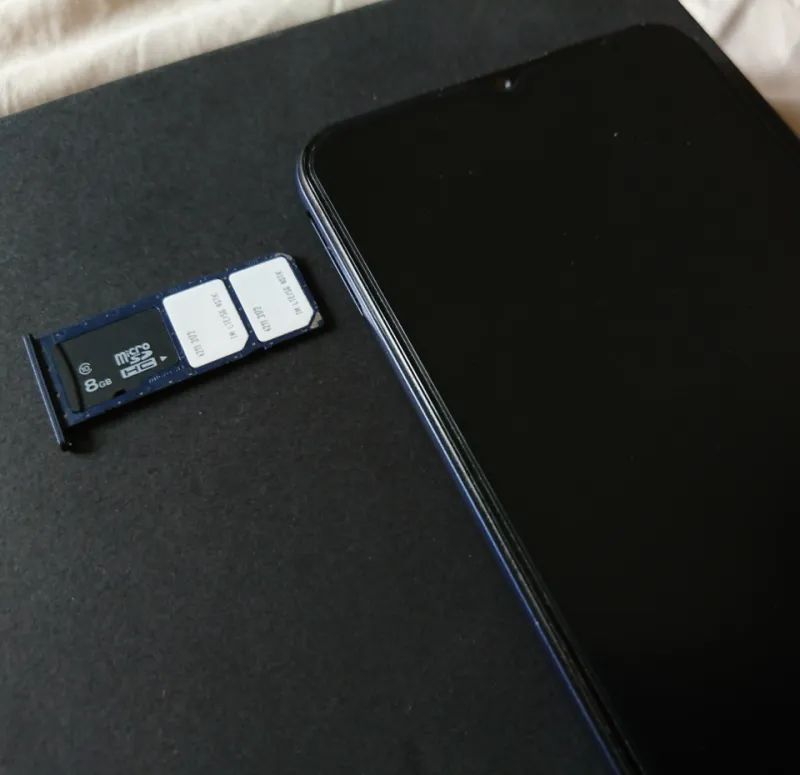
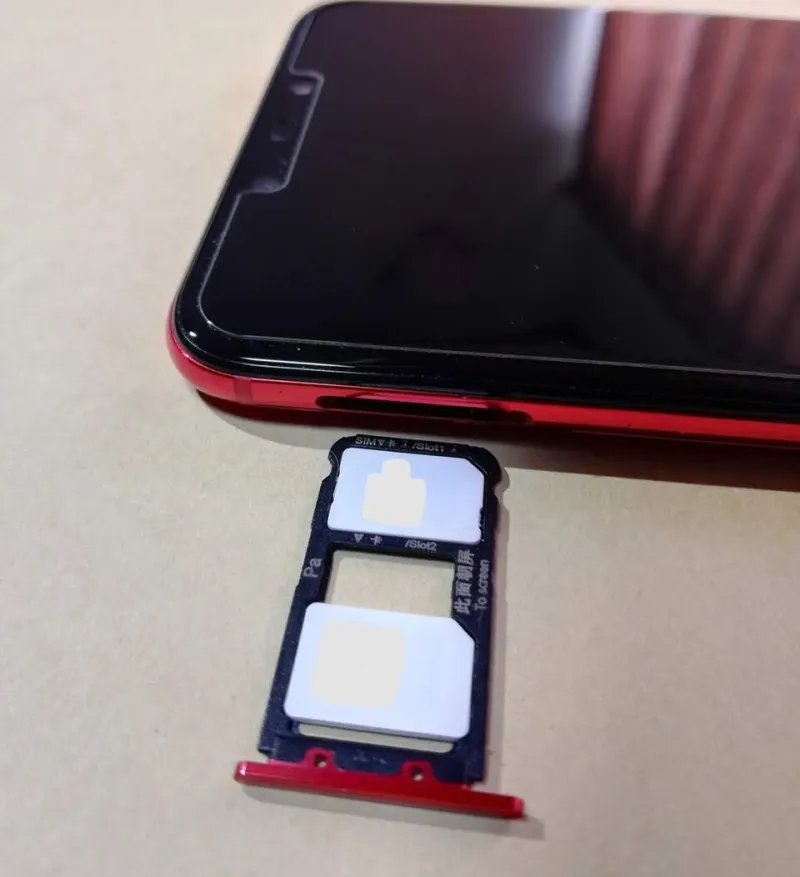
Dual-SIM phones make one thing feel wonderfully simple: two numbers, one handset. Then you open WhatsApp and realise the app has absolutely no interest in your clever slot management. Messaging apps tend to treat a phone number as an identity badge, not just a pipe for texts. Move the SIM, change the default line, and the app may still be waving the old badge around.
This is a setup guide for people who want to move messaging identities between a work and personal UK line without losing chats, groups, or the ability to receive the six-digit code that keeps everything alive. The trick is to stop thinking of it as one migration. It is three small migrations with different rules.
Separate the three things your phone is doing
Before you touch any app, write down three separate settings:
- Default voice line — which SIM makes calls when you tap a number.
- Default SMS line — which SIM sends ordinary texts.
- Default data line — which SIM gives apps their internet connection.
None of those settings automatically changes the number registered inside WhatsApp, Signal or iMessage. That is the bit that catches people out. You can set your personal SIM as the default for calls and data, then wonder why WhatsApp is still using your work number. The app is not being awkward; it simply has its own registration setting.
Also make a quick inventory. Which number is attached to WhatsApp? Which one receives Signal verification? Which numbers are listed under your Apple ID for iMessage and FaceTime? If you are moving a work line, check whether your employer controls the number or the account. Moving a company-owned number into a personal messaging profile can create a right old mess later.
WhatsApp: the number is the account
WhatsApp is the most number-bound of the three. Your account is your phone number. Changing the default SIM in Android or iOS does nothing to change that.
If you want to keep your chat history, do not uninstall and reinstall as your first move. Use WhatsApp's built-in Change Number option instead. In the app, go to Settings, tap your profile, and look for the account or phone-number section. The exact wording moves around between versions, but the path is usually Settings > Account > Change Number.
Before you start, make a backup. On iPhone that means iCloud; on Android it is usually Google Drive. Then check that both the old and new numbers can receive texts. WhatsApp will want to verify the new number, and it may still need the old line active during the process. If you have already cancelled the old SIM, you are making life harder than it needs to be.
One UK-specific point: if you are moving from a personal PAYG number to a work contract SIM, or the other way round, tell the humans who message you. WhatsApp groups do not always make it obvious which number a contact is using. A quick message to regular contacts saves a week of "sorry, which line is this?" confusion.
Signal: registration first, PIN second
Signal also uses a phone number for registration, but it has a proper Change Number flow and a PIN that helps protect your profile. Use the in-app option rather than creating a fresh account unless you actively want a clean break.
Go to Settings > Account > Change Number. Signal will ask for your old number and your new one, then send a verification code. Keep your Signal PIN safe. If you have linked devices, such as a desktop app, check them afterwards. A number change can affect how linked devices behave, and you may need to re-link if something looks stale.
Signal is generally the least dramatic of the three to move, but do not skip the test. Ask a contact to send you a message and place a Signal call. Then check that notifications arrive on the handset while your default data SIM is set to the line you actually want to use. If your second SIM has no data allowance, Signal will not magically post messages through the work Wi-Fi. It needs a working data path.
iMessage: Apple ID first, phone number second
iMessage is the odd one out because it is tied to your Apple ID as well as your phone number. On a dual-SIM iPhone, you can have more than one phone number registered for iMessage and FaceTime, and you can choose which line starts new conversations.
Open Settings > Messages > Send & Receive. You should see your Apple ID and the phone numbers available. Tick the numbers you want to use. Then look for Start New Conversations From and choose the line you want as the default. Do the same check in Settings > FaceTime if you use it.
If a number is stuck on "waiting for activation", give it a few minutes, then try toggling it off and on again. Make sure the SIM can receive an SMS verification from Apple. If you have moved a number between networks, the activation can be slower than a normal text. Do not panic-delete your Apple ID; that is like fixing a dripping tap with a sledgehammer.
A useful UK test: send an iMessage to a friend from your personal line, then switch the default conversation line and send another. Check the recipient sees the right number. Blue bubbles are lovely, but they do not tell you which SIM did the work.
Run a proper test matrix
Once the apps are moved, test like a geek rather than hoping for the best. Create three contacts: one personal, one work, one spare phone or a patient friend. Then run this lot:
- Send an ordinary SMS to each SIM and confirm the notification shows the right line.
- Call each number and check the default voice line is behaving.
- Send a WhatsApp message from the new number and ask for a reply.
- Send a Signal message and make a Signal call.
- Send an iMessage and a FaceTime call from each registered number.
- Turn off Wi-Fi and repeat the data-dependent tests on mobile data.
The last one matters. If your default data SIM is the wrong one, apps may still work at home and fail when you leave the house. In the UK, that is less of a disaster than it used to be, but it is still annoying when you are trying to find a train platform and your group chat goes silent.
The order that keeps you sane
Do not move all three apps at once. Pick one, migrate it, test it, then move to the next. WhatsApp first if it holds your most important chats, because it has the most history to lose. Signal second. iMessage last, because Apple's settings are more about which numbers are registered than a single account switch.
Keep the old line alive until every verification text, bank code and group chat has been tested. In 2026, a phone number is still a skeleton key for far too many services. Treat the move as a planned relocation, not a quick SIM shuffle.
The reward is worth it: one handset, two clear identities, and no more mystery messages arriving on the wrong line.