Name Badges for Your Numbers: A Dual-SIM Contact Separation Plan That Actually Holds
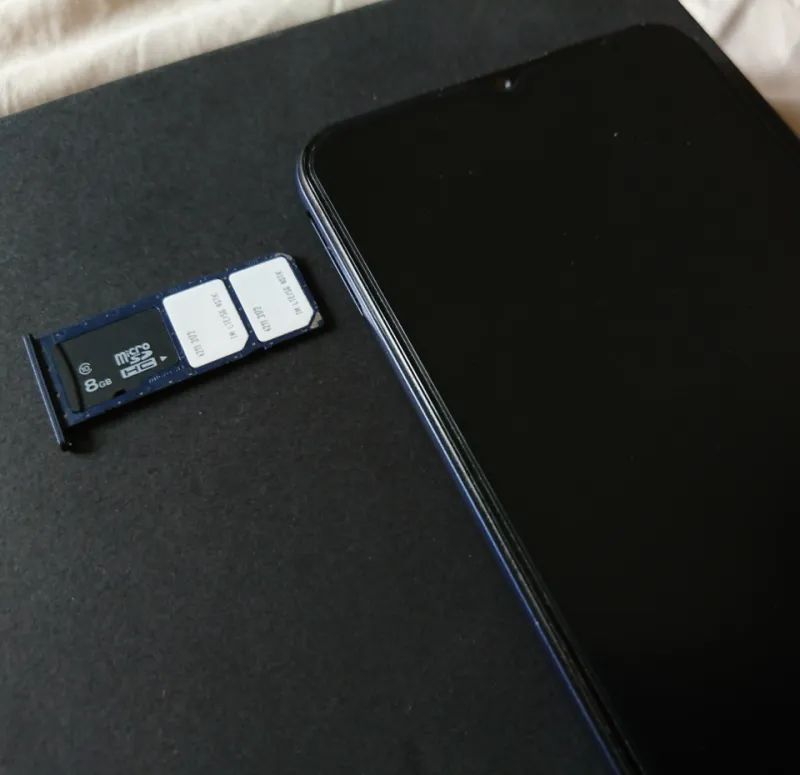
Photo: Paowee, CC BY-SA 4.0, via Wikimedia Commons
Two numbers in one phone sounds like a tidy arrangement until your contact list turns into a badly labelled filing cabinet. The client who rings at 8pm on a Friday is saved as just Dave. Your mum texts the work SIM because that was the last number she saw. WhatsApp has quietly attached itself to the line you use for Deliveroo. None of this is a hardware fault. It is a boundaries problem, and the fix lives in your contacts, your default-line settings and a handful of app-level choices.
I have set up enough dual-SIM handsets to know the temptation: bung both SIMs in, pick a default data line, and hope the rest sorts itself out. It does not. The phone will follow whichever line you last used or whichever default you set months ago, and it will do so with the confidence of a sat-nav that has decided the M25 is a scenic route. A little admin now saves a lot of awkwardness later.
Label the line, not just the person
The first rule is simple: a contact card should tell you which world that person belongs to. On Android, Google Contacts labels are your friend. Create labels such as Work, Personal and Maybe Both, then apply them with a bit of ruthlessness. On Samsung and Pixel phones those labels sync across devices, which means your contact list does not become a local mystery every time you upgrade.
iPhone is less generous with on-device groups, but it has a better trick: separate contact accounts. If your employer runs Microsoft Exchange or Google Workspace, add the work account to Contacts and keep personal people in iCloud or your personal Google account. You can then switch the work account off at the weekend without deleting anything. That is cleaner than renaming everyone to WORK DAVE and hoping you remember to undo it.
For people who exist in both worlds, do not cram every number into one card and expect your brain to choose correctly under pressure. Make two entries: Alex Work and Alex Personal, each with a note such as ring the personal line only. It looks slightly obsessive. It also stops you returning a client call from the queue at Tesco.
Set the defaults before you need them
Defaults are the real border between your two identities. A dual-SIM phone will ask you once, remember your answer for months and then act surprised when you wanted the other line.
On Android, open Settings > Network & internet > SIMs on a Pixel, or Connections > SIM manager on a Samsung. You will usually find separate preferences for calls, texts and mobile data. Set them deliberately. If your personal line is the one you give to family and friends, make it the default for calls and texts, then choose the work SIM manually when you are dialling a client. If work is the busier line, flip it. The important bit is that the default matches the line you use most often, so exceptions are a conscious tap rather than a daily correction.
On iPhone, go to Settings > Cellular > Default Voice Line. Pick the line you want for calls and ordinary SMS. Unlike Android, iPhone does not give you a separate default for texts in the same way, so that one choice carries more weight. If you regularly need the other line, use the line selector in the Phone app when you dial, or change the default temporarily. It is not as granular as Android, but it is predictable once you know where the switch lives.
Mobile data deserves a mention because it affects bills and tethering. If work pays for the data SIM, set that as the data line and keep an eye on personal streaming. If you are on a cheap Giffgaff or Tesco Mobile second line, do not let a software update quietly move your data back to the expensive contract SIM.
Android: use the bits that actually separate people
Android is the more flexible platform here, but only if you use its structure rather than fighting it. Start with contact accounts. Keep your work contacts in your work Google or Exchange account and your personal contacts in your personal account. In the Contacts app, choose which accounts are visible. At 6pm on a Friday, switch off the work account and your address book shrinks to the people you actually want to hear from.
If your employer uses an Android work profile, use it properly. Work apps and work contacts live in their own space, and you can turn the whole profile off outside hours. That is a stronger boundary than any label, because it stops the work contact list appearing in the personal dialler in the first place.
Most Android phones do not let you pin a specific contact to a specific SIM natively. Some manufacturer diallers offer a per-call choice, and a few add their own contact-level rules, but do not assume yours does. The reliable method is a clear contact label plus the SIM selector in the dialler. Annoying? Slightly. Better than a client hearing your personal voicemail greeting? Definitely.
iPhone: fewer switches, so lean on Focus and accounts
iPhone keeps the contact book simpler, which means discipline matters more. Check Settings > Messages > Send & Receive. That screen shows which phone numbers and email addresses are attached to your Apple ID for iMessage and FaceTime. If your work number is listed and you do not want personal iMessages arriving on it, untick it. Be warned: the work number will then stop receiving iMessage too. This is a boundary, not a magic trick.
Use Focus modes as a second layer. A Work focus can allow calls from favourites or specific people, and a Personal focus can silence the work crowd. It is not a SIM-level firewall, but it stops the phone shouting at you during dinner. Combine that with separate contact accounts and you have a decent moat around your evening.
The apps that leak quietly
WhatsApp is the usual suspect. It ties your account to a phone number, and it does not care about your careful contact labels. If you want a work WhatsApp, register it to the work number. On Android, recent versions let some users add a second account inside the app; on iPhone, the safer route is often WhatsApp Business for the work line, with its own notifications and profile. Do not assume you can switch an existing personal WhatsApp to the work SIM without losing your chat history. Back up first, then move deliberately.
Banking apps are the other leak. They send one-time passcodes to the number registered with the bank, not to whichever SIM happens to be active. If your personal current account is registered to a work mobile, every login becomes a small identity crisis. Go through each banking app, check the registered number and change it if it is wrong. UK banks increasingly push app-based approvals, but the SMS fallback still matters when you are abroad or locked out.
Signal and Telegram deserve a quick look too. Signal is number-based, so a work Signal account belongs on the work number. Telegram can use a username, but the account is still tied to a number. Treat messaging apps like passports: one identity per number, and no casual borrowing.
A five-minute monthly audit
Once a month, or after any eSIM swap, network change or OS update, run a quick check. Confirm the default call, text and data lines. Open WhatsApp and check which number is registered. Open your banking apps and confirm the security number. Scroll your recent calls and look for a client on the personal line or a family member on the work line. Fix the contact card while the evidence is fresh.
It is not glamorous, but neither is explaining to your boss why a Sunday roast booking came through on the company SIM. A dual-SIM phone can genuinely give you two clean lives in one pocket. You just have to tell it which line is which, and keep telling it when the software forgets.