Default Data Line Detective Work: Pinning Your Dual-SIM Phone to the Right UK Network
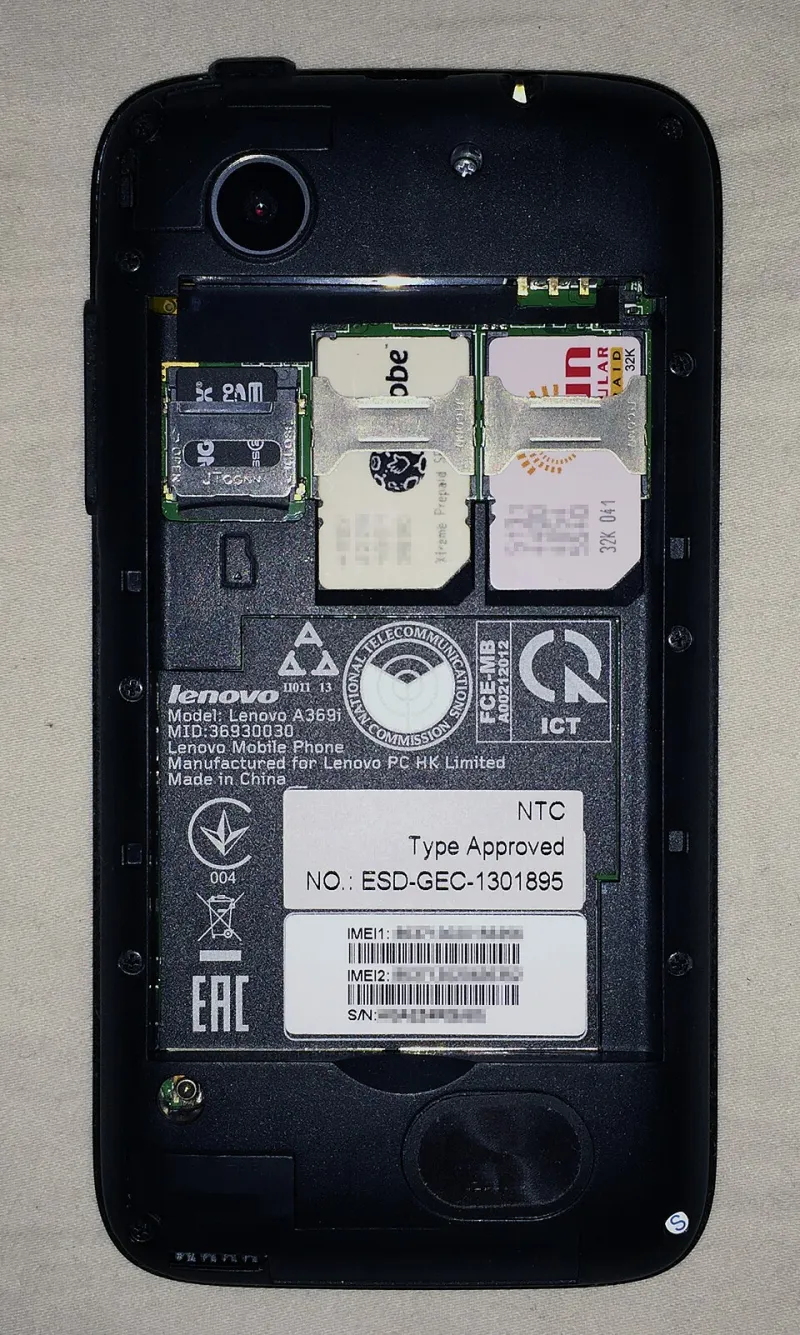
Photo: Blakegripling ph, CC0, via Wikimedia Commons
There's a specific kind of fury that only a dual-SIM owner knows. You're on a Northern line train somewhere south of Kennington, your work SIM is showing two bars of nothing, and your personal SIM on a different network is sitting there with full 5G. The phone, being a phone, has decided to route everything through the useless one. Maps won't load. The Slack notification sits there mocking you.
This isn't a bug in the traditional sense. It's a stack of defaults, toggles and carrier behaviours that almost nobody explains properly. So let's pull it apart.
Why your handset picks the "wrong" line at all
Almost every mainstream dual-SIM phone in 2026 is dual-SIM dual-standby — one radio chain does data while both lines idle on the network. The operating system therefore has to nominate a default data line, and it is stubborn about it. Whichever SIM you picked during setup, or the last time you fiddled in settings, stays the data SIM until you change it. Signal quality is largely irrelevant to that decision.
A handful of handsets offer an automatic escape hatch: iPhone's "Allow Mobile Data Switching" and the equivalent Samsung toggle that promises to hop to "the best SIM". Both work on crude signal-strength readings, not throughput. A congested band 20 (800MHz) cell showing four bars can be far slower than a lightly loaded n78 (3.5GHz) 5G cell showing two. The phone doesn't know that. You do.
Then there are the quieter gremlins:
- Roaming flags. Travel eSIMs and many MVNO profiles are flagged as roaming, so they refuse to pass data until "Data Roaming" is switched on for that specific line. It's per-SIM, not global, which trips people up constantly.
- APN mismatches. Networks push APN settings automatically, but a freshly installed eSIM sometimes arrives with a blank or wrong APN. Symptoms: full bars, no data, no error message.
- Calls blocking data. On plenty of mid-range phones, taking a call on line B knocks line A down to 2G or pauses data entirely. Great fun during a Teams call.
- VoLTE gaps. As the UK's 3G networks finished switching off back in 2024 and the remaining 2G networks edge towards retirement later this decade, a line without VoLTE support gets progressively less useful — and some imported handsets still lack it for UK networks.
Step one: claim the default data line and lock it
On iPhone: head to Settings > Mobile Service (or Mobile Data), then tap the line you want under "Mobile Data". Just above the line list you'll find the "Allow Mobile Data Switching" toggle — it only appears when two lines are active. Turn it off if you want certainty. While you're there, tap your secondary line and set "Mobile Data" to off so it can never sneak into the driving seat.
On Android: Settings > Network & internet > SIMs > Preferred SIM for mobile data. Samsung buries it under Connections > SIM Card Manager; Pixel and most other skins put it in the SIMs menu. Disable the automatic switching option if your phone offers one.
Five minutes, and the roulette wheel stops spinning.
Step two: check APN and roaming per line
On Android, the per-SIM menu has an Access Point Names entry. Compare what's listed against your network's published APN — a single wrong character in the APN field is enough to kill data silently. There's usually a "Reset to default" option in the overflow menu; use it before you start hand-editing.
On iPhone, Settings > Mobile Data > your line > Mobile Data Network only appears when the carrier allows manual editing, which many UK networks now block. If it's missing and data isn't working, try Settings > General > About — a carrier settings update prompt often appears there after a network change or a new eSIM install.
And check the roaming toggle on every single line, every time you install a travel eSIM. Nine times out of ten, that's the whole problem.
Step three: run tests that actually mean something
Signal bars are decoration. Do this instead:
- Same spot, both lines. Run three speed tests per line on Speedtest or nPerf, sixty seconds apart. Note download, upload and — crucially — ping and jitter. Jitter above about 30ms ruins video calls even at a healthy headline speed.
- Identify the band. Install NetMonster on Android to see which band and cell ID you're attached to. On iPhone, dial
*3001#12345#*for Field Test mode. If one line is clinging to a distant 800MHz mast while the other has a nearby 3.5GHz small cell, you now understand the speed gap. - Test at the time of day you'll actually use it. A line that flies at 7am can crawl at 6pm in a city centre. Congestion is the whole story in places like Manchester's Northern Quarter or central Leeds.
- Re-register. Toggle airplane mode, or forget and rejoin the network, before you blame the SIM. Handsets hold onto a stale cell for far longer than they should.
Step four: stop it drifting back
The default data line can get reset by a software update, by removing and reinserting a tray, or by iOS deciding it knows better. Set a reminder to re-check after any major OS upgrade.
There's no clean native way to route individual apps to individual SIMs on either platform — a long-standing annoyance — so if you want per-app control you're into Shortcuts automations on iOS or Tasker on Android, and both are fiddly. Most people are better off simply choosing the line that consistently wins your speed tests and leaving it there, with the other SIM reserved for calls and texts.
One last thing: emergency calls always go wherever there's coverage, regardless of your default line. That part, at least, the phone gets right.